Put Missouri school data on your Home Screen
There is nothing to download from the App Store or Google Play. This is a web app: open it in your phone’s browser, then add it to your Home Screen. It will appear with the Missouri-and-apple icon and open like an app.
The same district guide, made for a phone
Search the 516 geographic districts mapped by this site and open a compact profile with the district’s website, phone number, enrollment, funding, teacher pay, achievement, school counts, athletic conference and other context.
Move these instructions to your phone
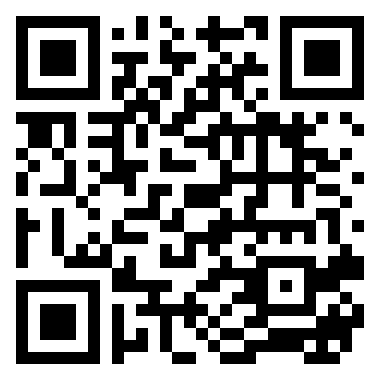
Scan this code with your phone’s camera
Point your camera at the code, then tap the link that appears. The instructions and the button to open the app will load on your phone.
Or open the mobile app in this browser →Adding the web app creates a convenient Home Screen icon; it does not create an account or collect any additional personal information. You can remove it the same way you remove any other Home Screen icon.
Choose your kind of phone
Start by opening the mobile app on the phone where you want to use it. Then follow the steps for that device.
iPhone or iPad
Use Safari for the most reliable Home Screen setup.
- Tap Open the Mobile App on this page.
- If necessary, open the page in Safari.
- Tap the Share button — the square with an upward arrow.
- Scroll down and choose Add to Home Screen.
- Turn on Open as Web App if that option appears, then tap Add.
Android phone or tablet
These steps are for Google Chrome; wording can vary slightly by phone.
- Tap Open the Mobile App on this page.
- If necessary, open the page in Chrome.
- Tap Chrome’s three-dot menu.
- Choose Add to Home screen. Some phones may instead show Install app.
- Follow the prompt to confirm Add or Install.